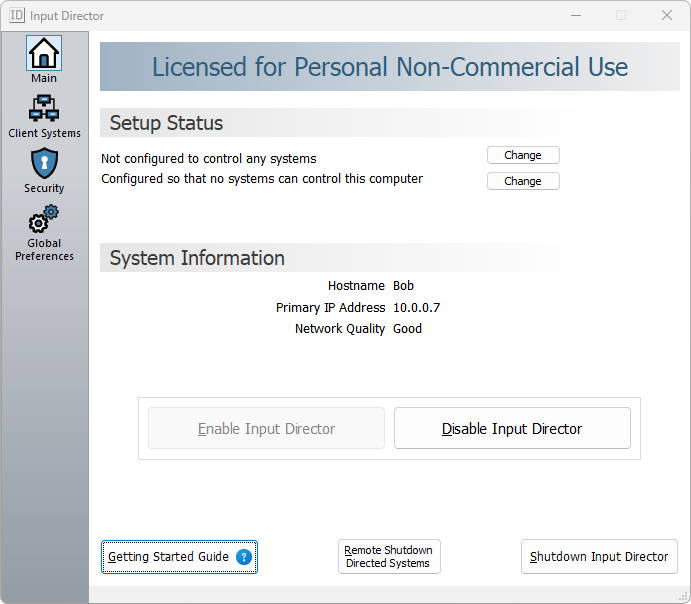
Before kicking off the installation and configuration of Input Director it's important to first explain the master/slave terminology used throughout the documentation and application.
The master system is the computer that has the mouse/keyboard that you be using to control it and the other system(s). A slave system is one that can receive input (keyboard and mouse) from a master.
The quickstart guide will run though setting up two computers, one as the master, the other as a slave. You need to decide now which computer you will use as the master - that is, which one has the keyboard/mouse that you want to use to control it and the other system (the slave).
For the remainder of the quickstart guide, the two Windows systems that Input Director will be installed onto will be referred to as the master and the slave.
The first step is to install Input Director onto both the master and the slave. To install, download the InputDirector.v1.0.9.zip file and run on the setup.exe inside it to begin the installation process. Follow the prompts to install Input Director. You need to repeat this process on your other system so that you have it installed on both the master system and the slave system.
This section covers configuring Input Director with one slave and one master.
In summary, Input Director on the slave system needs to be configured to:
Input Director on the master system needs to be configured to:
Before you can begin the slave configuration you need to know the name of your master system. If you're unsure how to look that up, instructions for how to do this are in the faq and can be located here.
On your nominated slave system, start Input Director by clicking on the "Input Director" icon on your desktop or via Start/All Programs/Input Director. The Input Director window has a series of tabs across the top of the window. Click on the "Slave Configuration" tab:

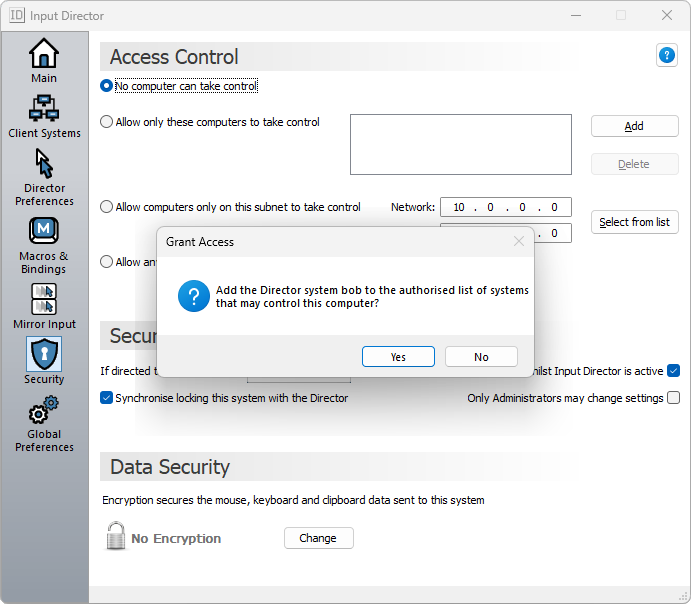
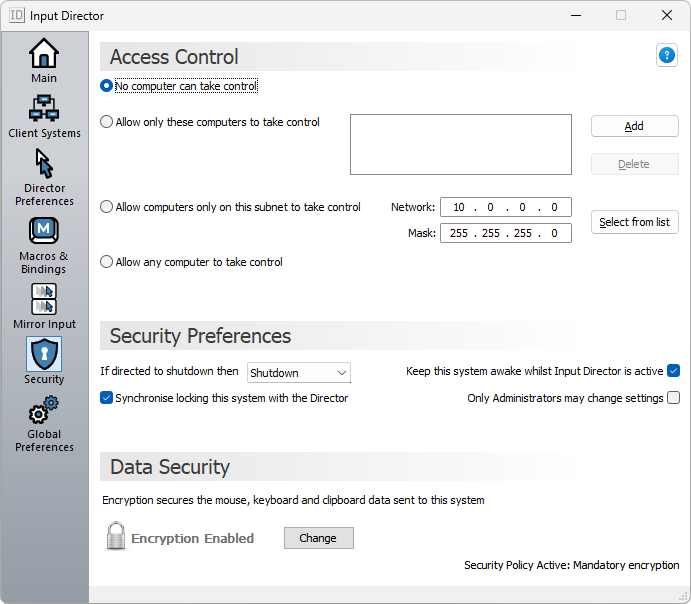
This panel lets you decide which master system(s) can take control (send input) to this slave. Input Director supports having multiple master systems authorised to control a slave.
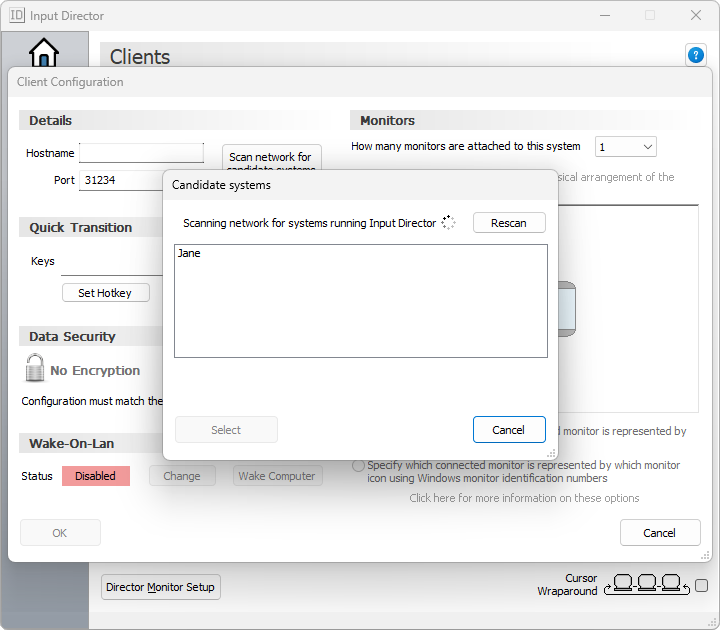
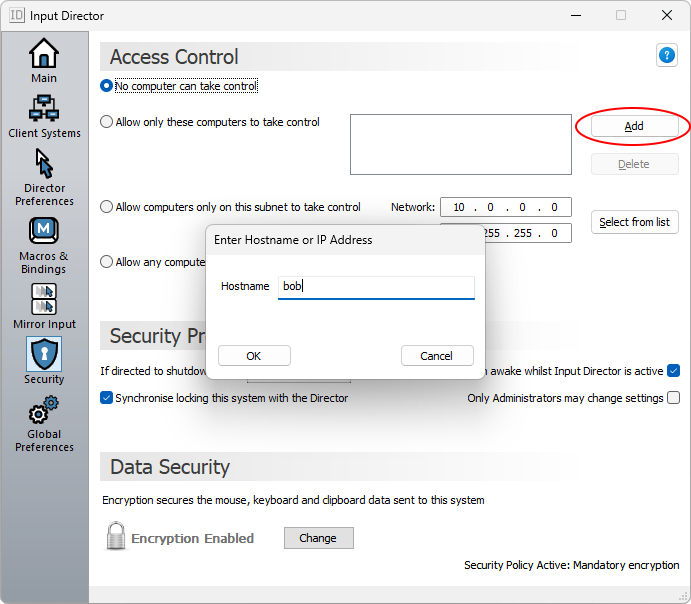
Click on the "Add" button and enter the name (or IP address) of the computer that will act as the master. If Input Director is unable to find the host (that is, resolve the host name) it will indicate this and either the name you have entered isn't correct or the master system isn't network accessible from the slave.
The final step is to enable Input Director in slave mode:
Click back to the Main tab and depress the "Enable as Slave" button and you're done:
To confirm that Input Director is enabled in slave mode, have a look on the Windows notification bar (usually located in the bottom-right hand corner of the screen. The Input Director "ID" icon will be one of 3 colours:
- Input Director is disabled
- Input Director is enabled as a slave
- Input Director is enabled as a
masterAs Input Director should now be enabled as a slave, the icon should be
green:

Before you can begin the master configuration you need to know the name of your slave system. If you're unsure how to look that up, instructions for how to do this are in the faq and can be located here.
On your nominated master system, start Input Director by clicking on the "Input Director" icon on your desktop or via Start/All Programs/Input Director. The Input Director window has a series of tabs across the top of the window. Click on the "Master Configuration" tab:

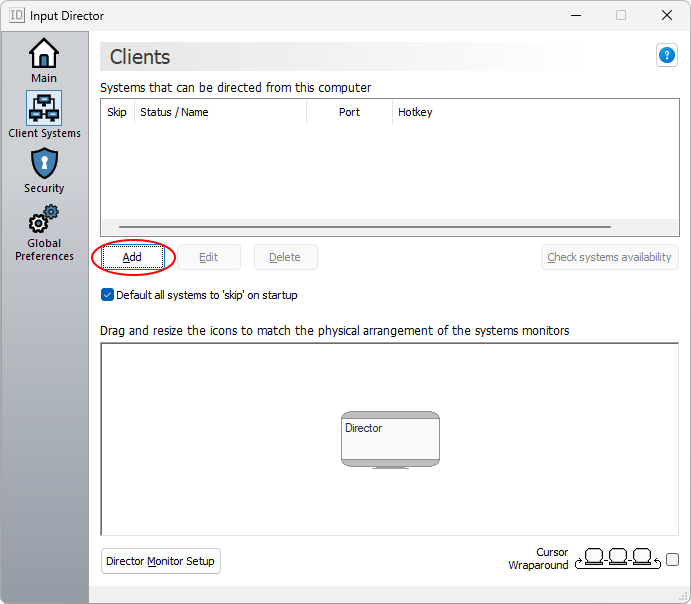
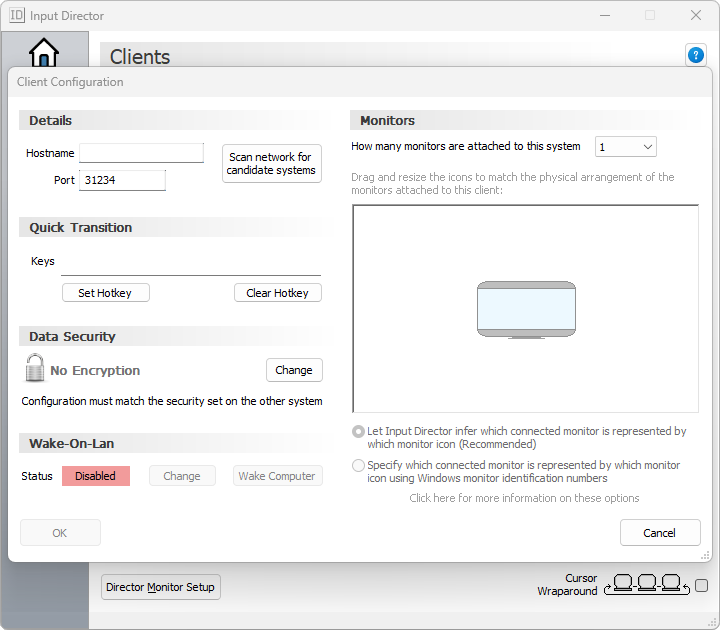
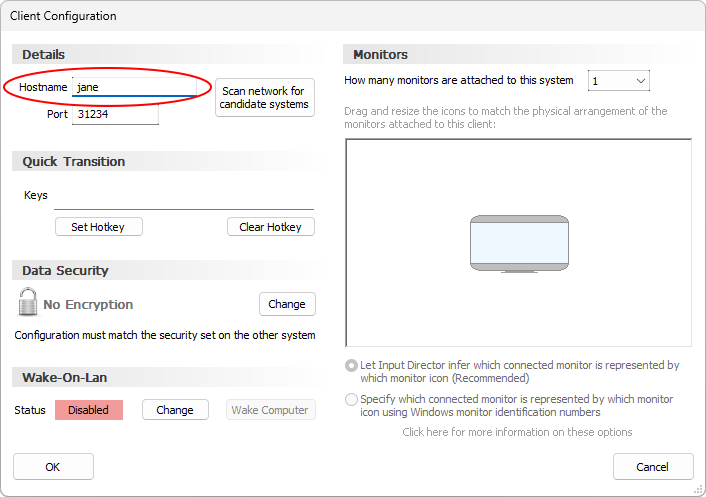
This panel is used to manage the slaves that this master will control. To add a new slave, click on the "Add" button to be presented with the Slave Configuration dialog box:

When you've finished, click the "OK" button to add the slave. Input Director will do two thing now - It will query the hostname to ensure that it is valid (if it isn't you will be returned to the Slave Configuration window to edit the hostname). It will also attempt to communicate with Input Director running on the slave.
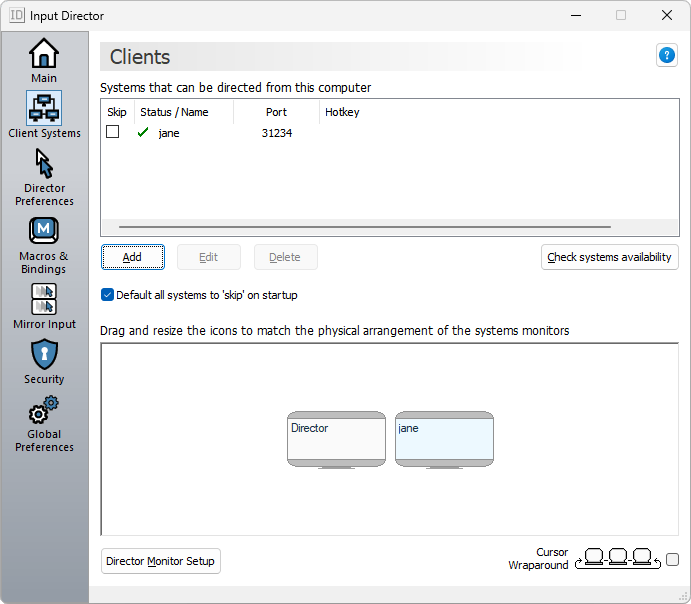
Returning to the Master Configuration screen, the slave will be in the list in the bottom half of the panel and it will also appear as an icon in the upper half. For example, if a slave with the hostname "bob" was added, then the screen would now be this:

The green-tick next to the slave "bob" indicates that Input Director on the master was able to communicate with Input Director slave and that all is well. If a red-cross is next to a slave, then Input Director was unable to communicate. The most likely reasons for this are either Input Director isn't running on the slave (or if it is running it isn't enabled as a Slave) or there is a firewall on the master and/or the slave interfering with communications.
If the "Skip" square box next to "bob" is ticked, Input Director will not attempt to switch to it via a screen-edge transition.
By clicking the "Scan Slaves" button, Input Director will re-attempt to communicate with each slave and update its status.
The upper-half of the panel is used to tell Input Director where each monitor is located relative to the others. As Input Director lets you transition from one system to another by moving the mouse "off the screen" on one system so that it pops onto the screen of another, it needs to know how the monitors are physically positioned. In the previous screen-shot, bob is positioned to the right of the Master system, representing that physically the monitor for the "bob" slave has been sat to the right of the monitor attached to the master system.
If your slave system's monitor is on the left side of the master monitor, then you will need to re-order the icons to reflect this. To move an icon click and hold the mouse button down over the top of one the icons and whilst holding down the mouse button, drag the monitor to its new location and then release the mouse button.
Using the "bob" example, if bob's monitor was physically to the left of the master monitor, the screen would now look like this:

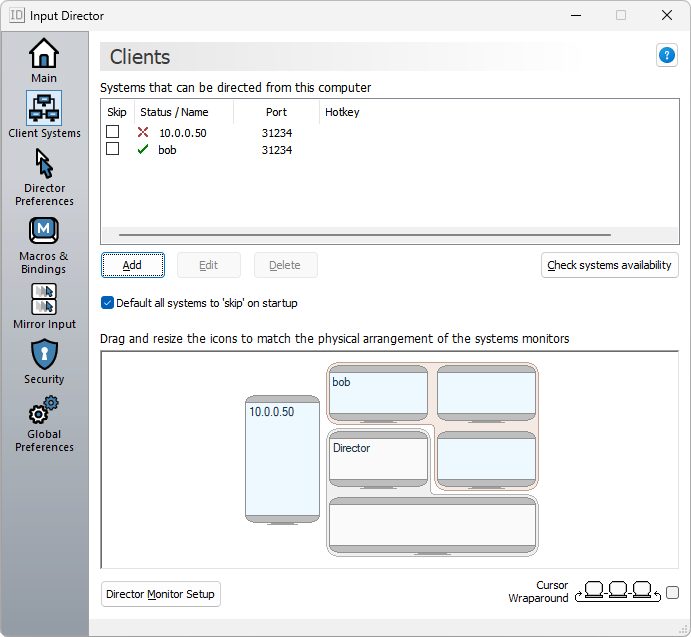
Input Director supports a variety of configurations, including having monitors physically positioned vertically above each other. This example has the slave 'bob' setup with 2 monitors next to each other and the master monitor located below bob's left monitor:

When you configure a slave with multiple monitors you need to select whether the monitors are positioned horizontally or vertically. This must match how they are physically placed as well as how they have been configured in Windows. Multiple monitors are setup within Windows in the 'Display Properties'.
For example the following demonstrates 2 monitors setup next to each other. Monitor '1' being the primary monitor. This demonstrates how the example 'bob' slave above would have been configured in Windows.
Monitors are arranged in a grid within Input Director allowing for a rich variety of combinations:

This example has 1 master and 2 slaves. The master has 2 monitors that are positioned vertically, the slave 'bob' also has 2 monitors, but these have been positioned horizontally and finally 'jane' has 1 monitor. These monitors are physically arranged on two shelves, the top shelf having 3 monitors and the bottom shelf the other two.
If you have more than one monitor attached to your master system, you need to tell Input Director how many and if they are orientated horizontally or vertically. To do so, press the "Master Monitor Setup" button to bring up the configuration window:

The final step is to enable Input Director in master mode:
Click back to the Main tab on Input Director window and depress the "Enable as Master".

The Input Director icon on the notification status bar should now be red, indicating that Input Director is enabled in master mode:

Now they you have Input Director installed on your Master and Slave systems, Click here to continue to the Usage guide to learn how to use Input Director and tailor it to your needs.